
Quizzes & wizards
A quiz (or wizard) walks a visitor through a few short questions, then shows a tailored result. Because each answer can apply its own tag, a quiz doesn’t just capture a lead — it qualifies and segments them at the same time.
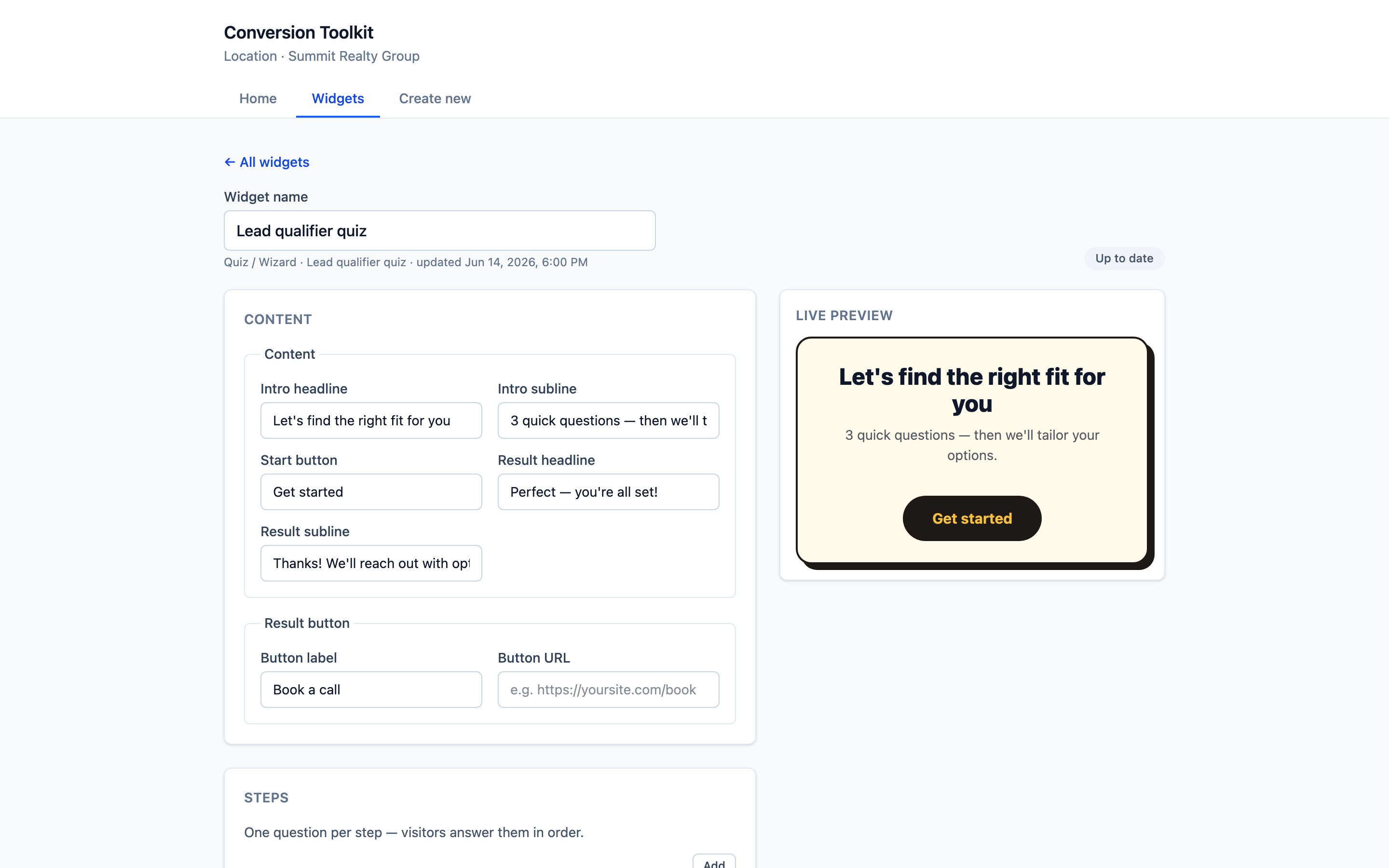
Settings
Content
| Field | What it’s for |
|---|---|
| Intro headline / subline | The opening screen that gets people to start |
| Start button | The label to begin — e.g. “Get started” |
| Result headline / subline | What they see at the end — e.g. “Perfect — you’re all set!” |
| Result button (label + URL) | The final call to action — e.g. “Book a call” |
Steps (the questions)
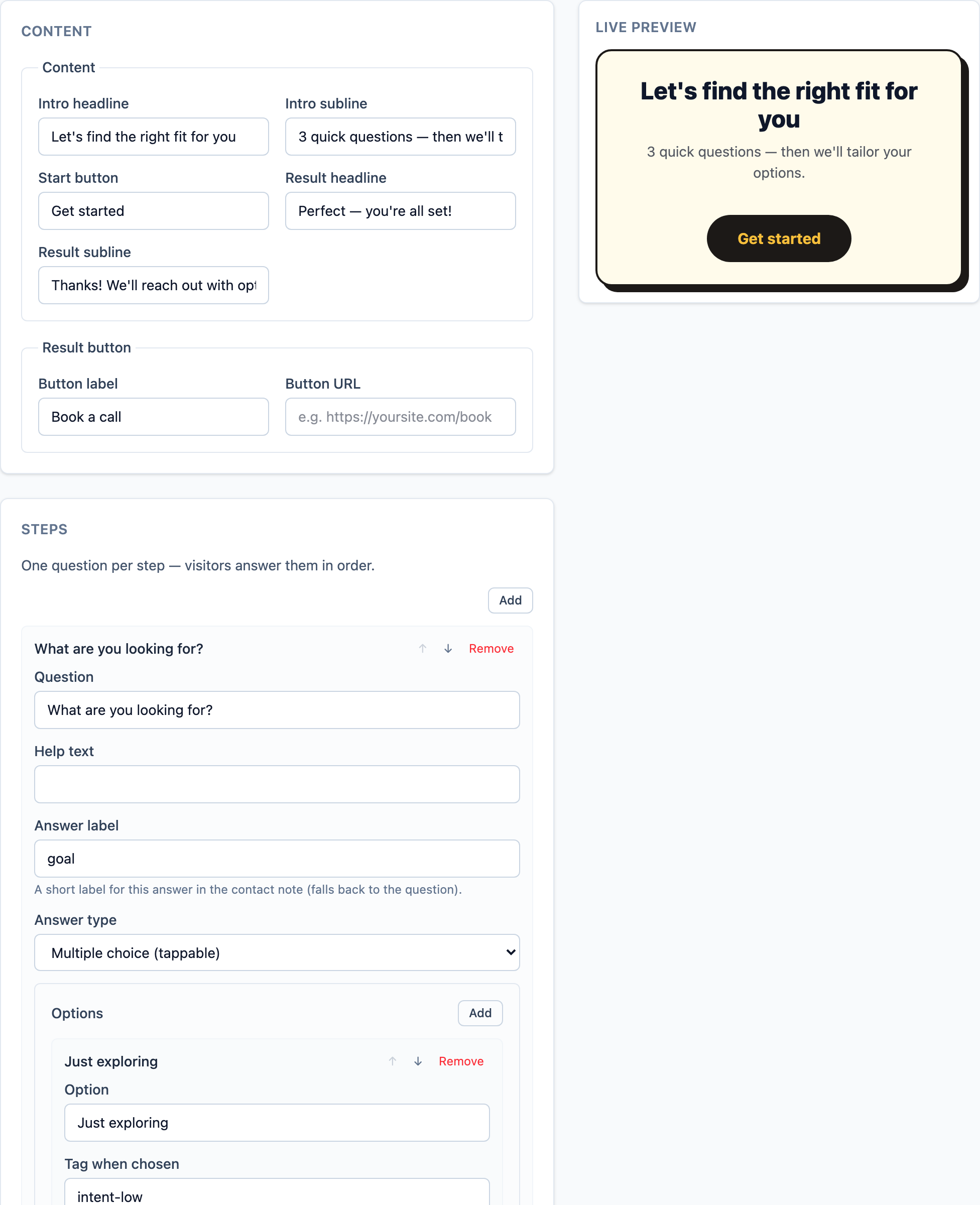
You add one question per step, and visitors answer them in order. For multiple-choice questions, each option has a “Tag when chosen” field:
- The tag is applied to the contact when that answer is picked, so the answers become the segments. This is the heart of bucketing & segmentation.
The built-in Lead qualifier quiz ships with intent / budget / timeline questions already tagged
(intent-high, budget-high, timeline-now, …).
Lead capture
Turn on lead capture to gate the result behind an
email. Captured quiz leads get the wizard-lead tag, the per-answer tags above, and a note listing
their answers.
What visitors see
When to use
- “Find your fit” product/service recommenders.
- Lead qualification — sort by budget, intent, and timeline before sales ever calls.
- Segmenting a list so each group gets relevant follow-up.
Tips
- Keep it short — 3–5 questions is the sweet spot for completion.
- Make every answer map to a tag you’ll actually use in a workflow.
- Put the real value in the result so finishing feels worth it.
[1] Interact, Quiz Conversion Rate Report, 2026 (80M+ leads).