
Conversion Toolkit
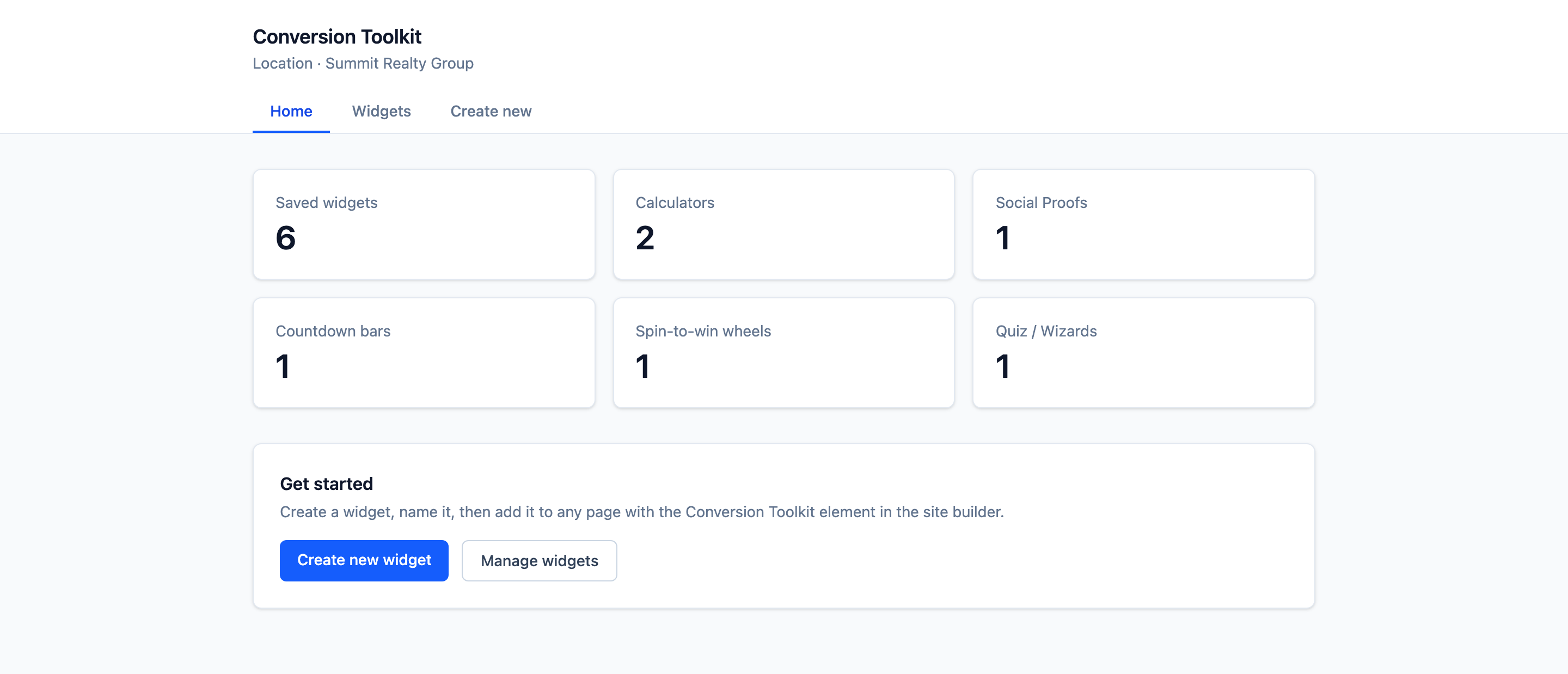
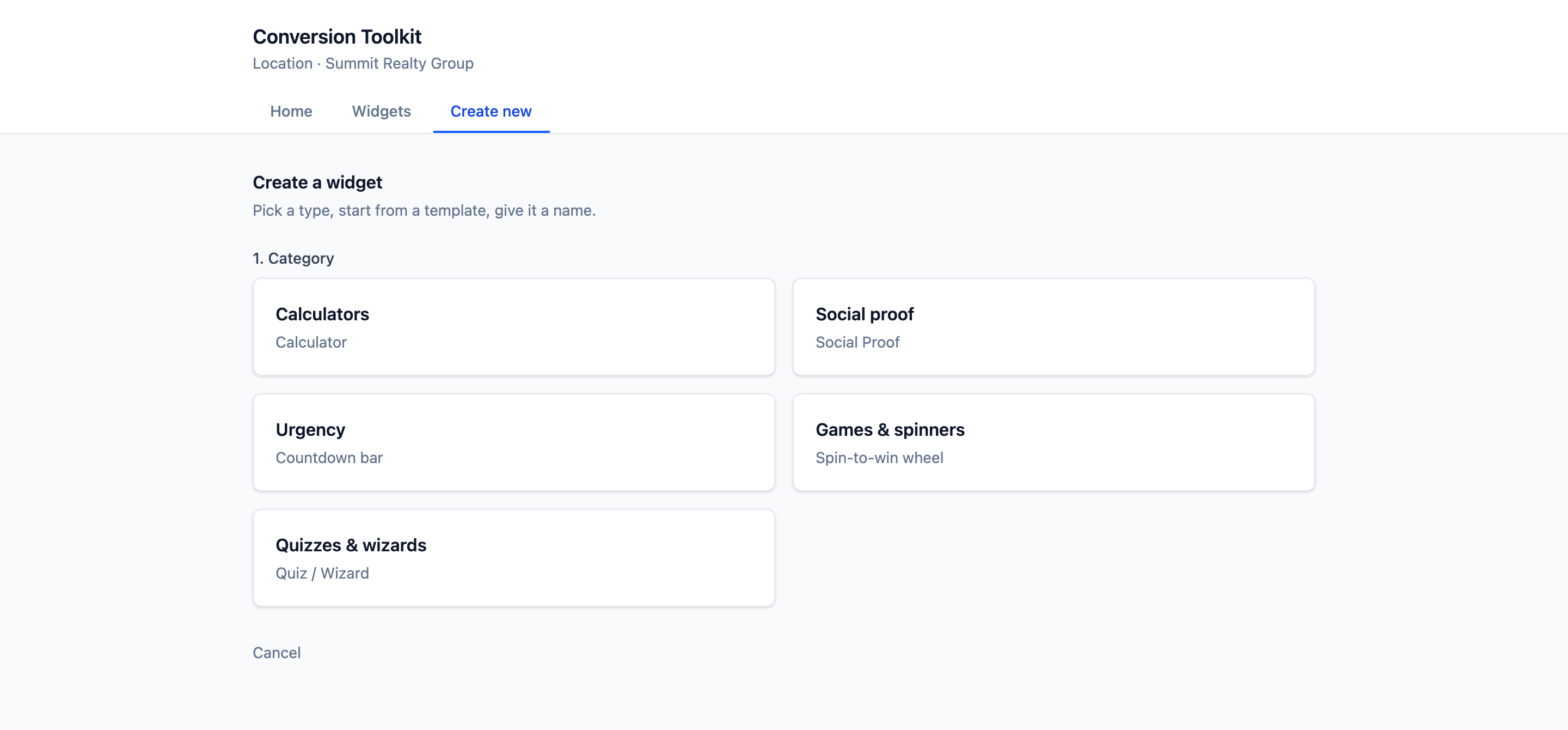
Conversion Toolkit adds interactive, lead-capturing widgets to your funnels and websites — calculators, social proof, countdown bars, spin-to-win wheels, and quizzes — without any code. You build a widget once inside the platform, drop it on a page, and it starts turning visitors into contacts.
Why it works
Most landing pages are passive — a visitor reads, maybe scrolls, and leaves. Interactive elements give people a reason to engage and a reason to hand over their email:
- A calculator answers a real question — “what would solar save me?” — in exchange for an email.
- Social proof reassures hesitant visitors that other people already trust you.
- A countdown turns “maybe later” into “act now.”
- A spin-to-win wheel or a quiz makes opting in feel like a game instead of a form.
And every widget can capture the lead and push it straight into your CRM — tagged, noted, and with the results saved — ready for your follow-up automations.
The five widget types
| Widget | What it does | Good for |
|---|---|---|
| Calculators | Visitors enter a few values, get an instant result | Quotes, savings, ROI, “what will it cost me?” |
| Social proof | Recent-activity pop-ups and trust signals | Reassurance near a form or buy button |
| Countdown bars | A ticking deadline on an offer | Sales, launches, enrolment deadlines |
| Spin-to-win wheels | Gamified opt-in — spin for a code | Email capture, first-order discounts |
| Quizzes & wizards | Guided questions that qualify and route | ”Find your fit”, lead scoring, segmenting |
How the pieces fit together
There are three pieces, and you only ever touch the first one:
- The app (settings). Conversion Toolkit lives in your sub-account’s left sidebar. This is where you create widgets, style them, and turn on lead capture.
- The widget on your page. In the funnel/website builder you drop in the Conversion Toolkit element and pick one of your saved widgets. The page only stores which widget to show.
- The live widget. What your visitors see is served and kept up to date for you — so editing a widget in the app updates every page it’s on, with no page edits and no re-publishing. (More in How it works.)
Where to go next
- Getting started → — install and ship your first widget.
- Use cases → — real campaigns you can copy.
- Widgets → — deep dives on each type and every setting.
- Capturing & automating leads → — turn captures into tagged contacts that trigger your workflows.